The flight, the way it will happen
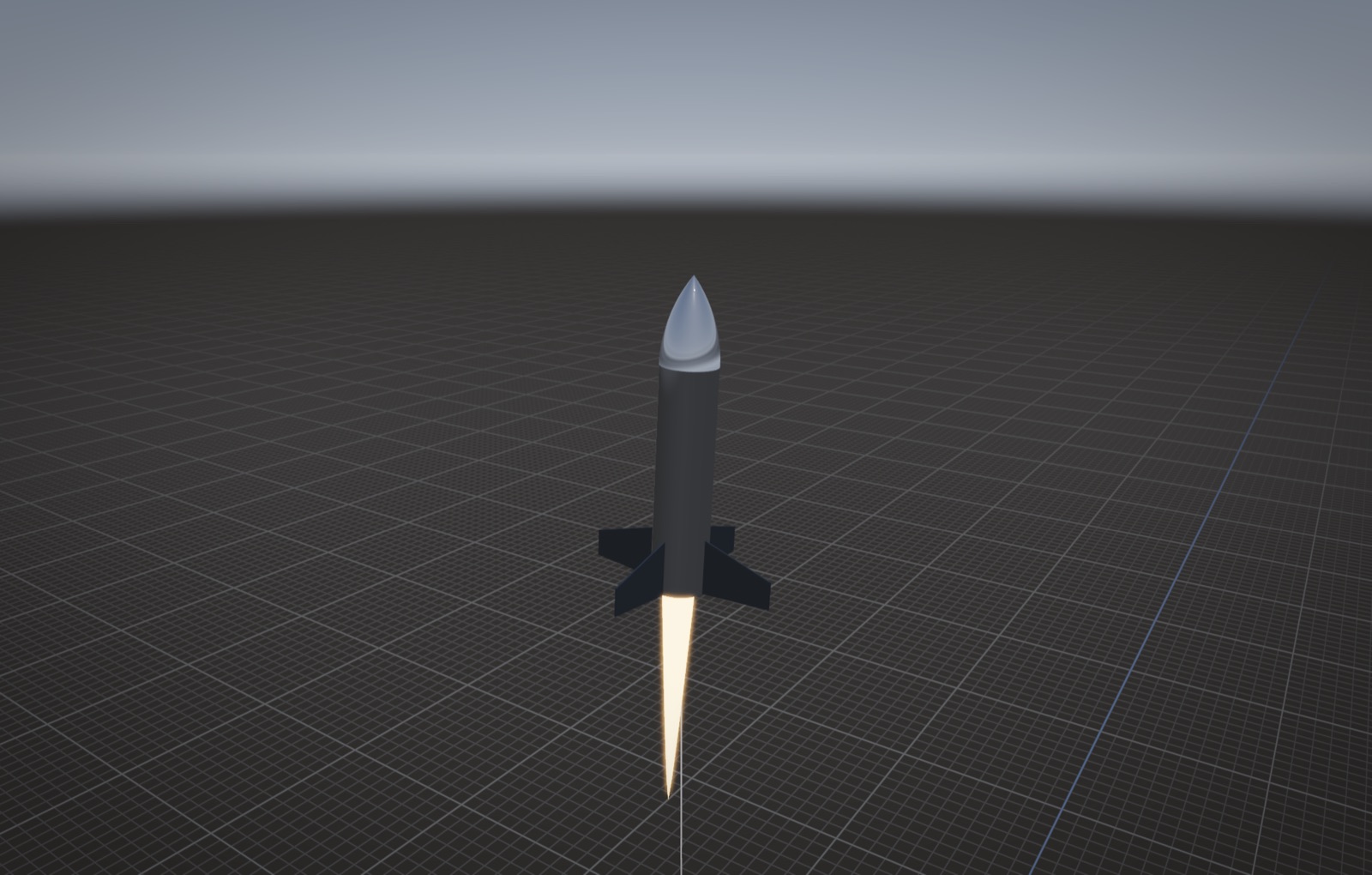
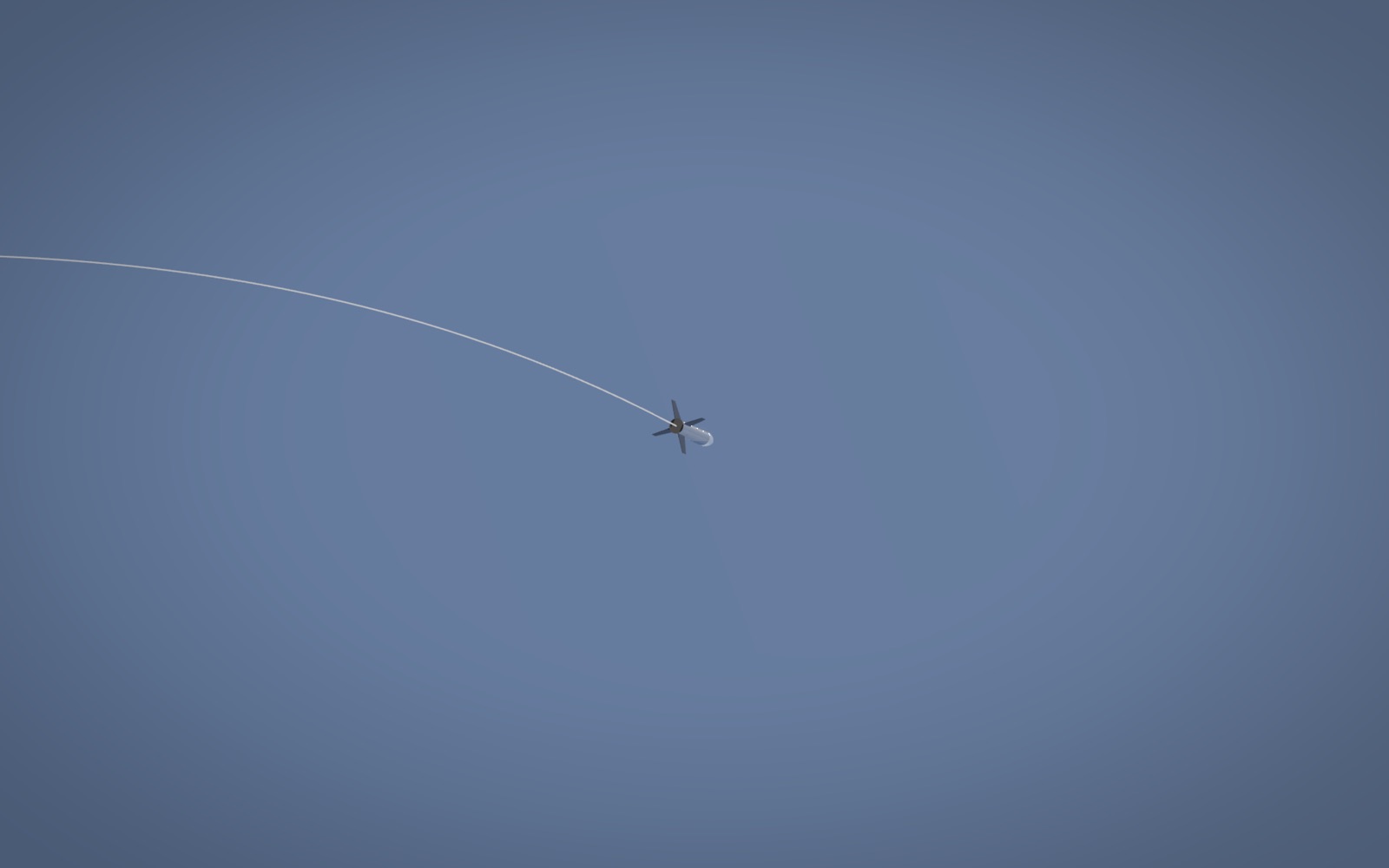
Drop in an OpenRocket file and RocketScope flies that exact rocket on its real motor thrust curve, with the mass, centre of pressure and drag OpenRocket worked out for it. It lands within a few percent of OpenRocket's own apogee, and you get to watch it.
Bring your own rocket
Each tool does the part it is best at. RocketScope puts them in one place.
-
Drop in your CAD
Export an STL or OBJ from Fusion and drop it on the window. That is the model you will see fly.
-
Drop in the .ork
Run one simulation in OpenRocket, save, and drop the file on top. Your CAD stays; the motor, mass and stability come from OpenRocket.
-
Add the CFD
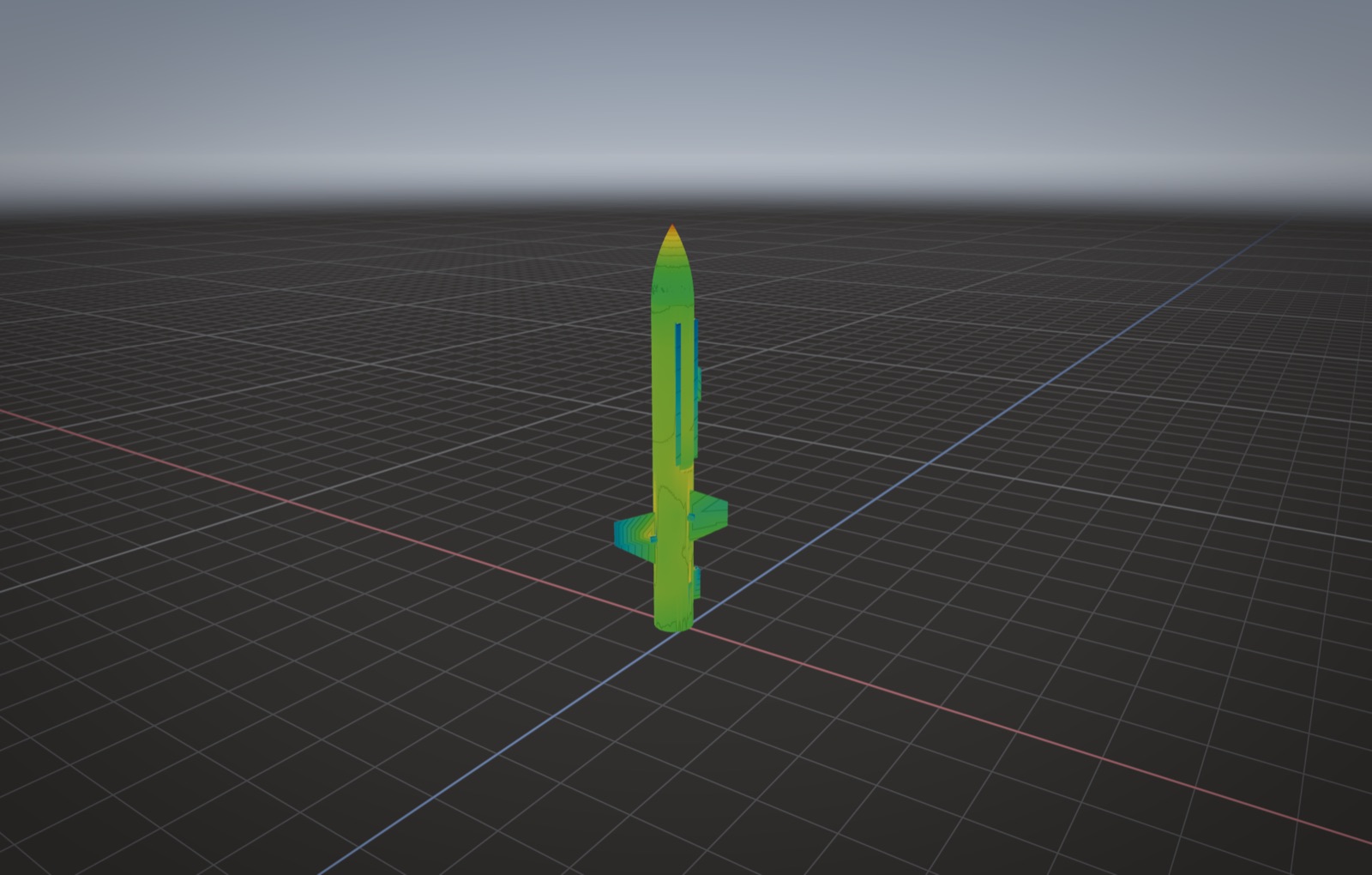
View, Open Airflow Case. The real drag replaces the estimate, and the trust grade and findings show next to the pressure scale.
Moves like Fusion
Middle-drag to pan, Shift and middle-drag to orbit, scroll to zoom at the cursor. On a trackpad: two fingers pan, Shift and two fingers orbit, pinch to zoom. C switches between the follow camera, the ground camera and a free view.
Opening it the first time
RocketScope is signed by STUHI but is not yet notarised by Apple, so macOS asks you to confirm it once. After that it opens normally.
- Open the disk image and drag RocketScope into Applications.
- In Applications, Control-click RocketScope and choose Open.
- Choose Open again in the dialog. If there is no Open button, go to System Settings, Privacy & Security, and click Open Anyway.